Flowchart software falls into three buckets: dedicated diagram tools, collaborative whiteboards, and workspaces that combine docs with diagrams. The right choice depends on what you're doing most often.
If you need precise diagrams and standards, pick a diagram tool. If you run workshops or map processes with a team, a whiteboard is usually faster. If your flowcharts need to live next to the written process docs, a workspace can be the cleanest setup.
This list covers the best flowchart tools in 2026 based on real user reviews. For each tool, we focus on what it's best at, what it's missing, and when it makes sense to choose it.
Before we get into the picks, here's a quick overview of what flowchart software is and what to look for.
What is flowchart software?
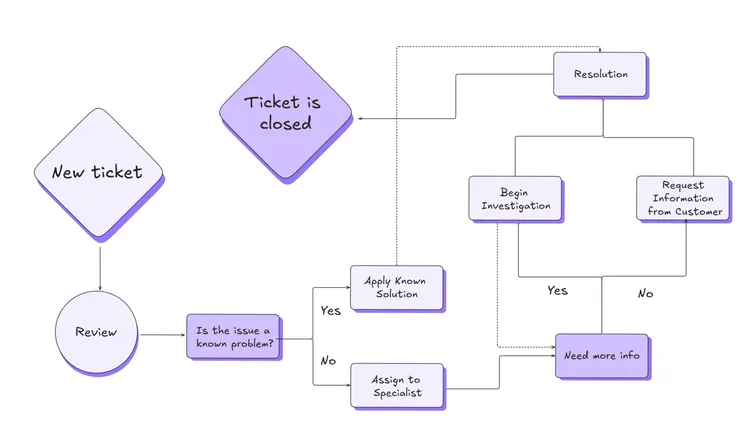
Flowchart software is a tool that lets you create flowcharts – diagrams that visually represent a process or workflow. They use standardized symbols, such as rectangles for steps, diamonds for decisions, and arrows for the order of steps, to communicate how different parts of a process interact.
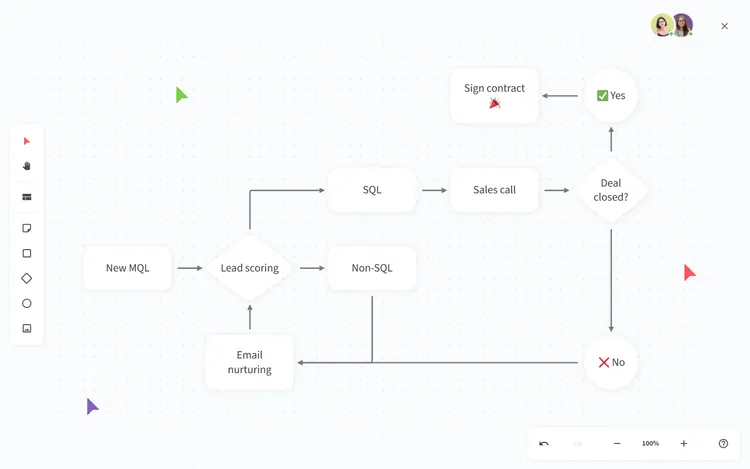
Flowchart tools let you create various types of flowcharts and diagrams, such as process flowcharts, network diagrams, and UML diagrams.
Whether you're designing a new system, troubleshooting an issue, or planning a project, flowchart software can help you see the big picture and the finer details. It's a versatile tool that is used across various industries and tasks, from custom software development to business process management.
What makes the best flowchart software?
So, what sets the best flowchart software apart from the rest? It's all about combining power, flexibility, and ease of use. Let's break it down.
- Ease of use: The best flowchart software should have an intuitive interface that makes it easy to start creating diagrams right away. Look for drag-and-drop functionality, user-friendly design, and helpful tutorials or guides.
- Versatility: You need a tool that can handle anything you throw at it. Whether it's process flowcharts, org charts, mind maps, network diagrams, or UML diagrams, the best software does it all. One tool, many uses.
- Templates: The best flowchart software comes with a library of templates and pre-built shapes, so you can create professional diagrams in minutes.
- Collaboration: If you work in a team, collaboration features are essential. Look for tools that offer real-time collaboration, commenting, and sharing options. This makes it easier for team members to contribute and stay on the same page.
- Integrations: Your flowchart tool should play well with others. Look for software that integrates with your favorite apps.
- Easy sharing: Easy export and sharing options are crucial for presenting and distributing your flowcharts. The best tools let you export in multiple formats (PDF, PNG, SVG, etc.) and provide sharing links or embedding options.
In the next sections, we'll spotlight the best flowchart software out there, examining how they stack up in these areas. Ready to find your perfect match? Let's dive in and discover the tools that can turn your ideas into visual reality.
How we evaluated these flowchart tools
To keep this list practical, we used the same test setup across every tool. We built a mid-sized workflow flowchart with multiple branches, decision points, and a few swimlanes, then iterated on it to see how each editor holds up once things get messy.
To cross-check our impressions, we compared what we saw with recurring patterns in user reviews on platforms like Capterra and G2.
Our reviews are independent and not influenced by sponsorships or paid placements. We revisit and update this guide regularly to reflect product changes, new features, and shifts in how teams document their work.
15 best flowchart software tools
Like with most things, there is no objectively "best" option when it comes to flowchart software. There are myriads of different tools out there, each with its own strengths and weaknesses. A flowchart maker that works for one team may be a bad fit for another.
To make your decision easier, we have put together a list of the best flowchart software tools, based on real user reviews.
- Nuclino
- Lucidchart
- Microsoft Visio
- FigJam
- Gliffy
- Draw.io (Diagrams.net)
- Excalidraw
- Miro
- Creately
- EdrawMax
- SmartDraw
- OmniGraffle
- Whimsical
- Mermaid Chart
- Mural
Each one of these tools has its strengths and weaknesses. Let's take a closer look at your options.
1. Nuclino

- Pricing: Free, advanced features starting from $6/user/month
- Rating on Capterra: 4.7/5
Nuclino is more than just an online flowchart tool. It's a unified workspace for all your team's work – with built-in flowcharts. Unlike most traditional flowchart software, which only focuses on diagramming, Nuclino seamlessly integrates visual collaboration into a single versatile productivity tool.
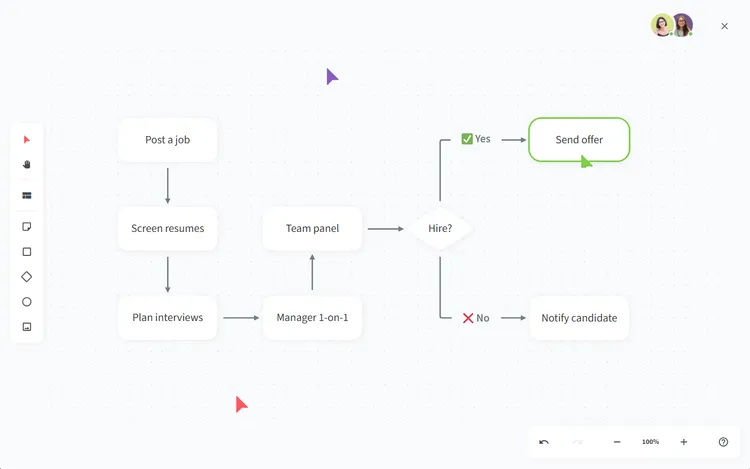
You can create flowcharts on an infinite collaborative canvas. You can also brainstorm ideas with sticky notes, build moodboards, and collaborate in real time.
This canvas can be added to any document you create in Nuclino. For example, you can document a process or a workflow and visually capture it in a flowchart, all in the same tool. No need to switch between separate diagramming and documentation platforms.
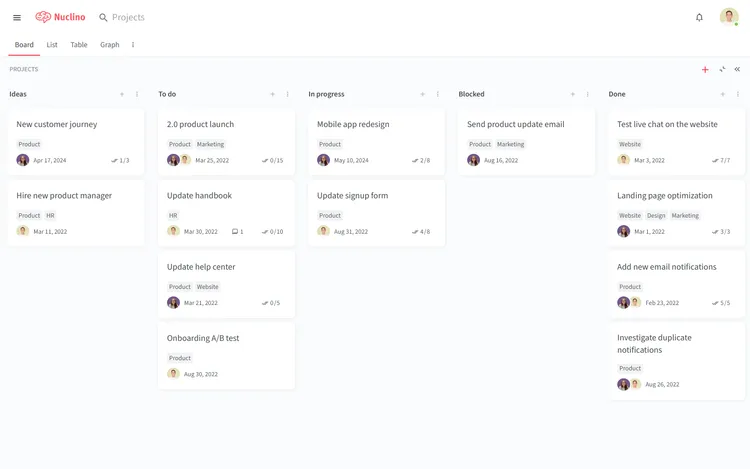
You can organize these documents in a variety of ways, including a nested list, a Kanban board, a table, or an interconnected graph. This allows you to tailor the workspace to your team’s workflow, whether it’s managing projects, brainstorming, taking meeting notes, or building an internal wiki.
What users say about Nuclino:
"Nuclino is saving us hours when it comes to ‘finding that one thing’ that you didn't need until now, be it a process, design sketch, or meeting notes."
— Matt Bond, Lead Game Designer at Psyon Games
2. Lucidchart
- Pricing: Free, advanced features starting from $8/user/month ($12/user/month if bundled with Lucidspark)
- Rating on Capterra: 4.5/5
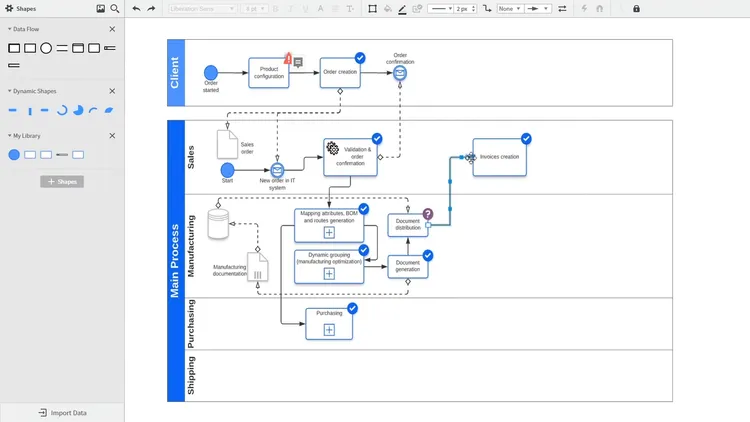
Lucidchart is one of the most popular flowchart software tools. Its drag-and-drop interface makes it accessible for beginners, while its wide range of customization options and templates cater to more advanced users.
On the downside, some users might find Lucidchart's pricing a bit steep, especially for premium features. The free version is pretty basic, so if you need advanced functionalities or integrations with other apps like Google Workspace or Microsoft Office, you'll need to pay.
Lucidchart pricing plans start at $8 per user per month. If you're also interested in Lucidspark, a collaborative online whiteboard offered by Lucid, you have the option of purchasing them as a bundle starting at $12 per user per month.
What users say about Lucidchart:
"Love it. I was able to make complex flowcharts during my first time using the software. Lucidchart is a far superior product to the more traditional flowchart software Visio. The simple layout, easy sharing, and the ability to build complex flowcharts make Lucidchart the best out there. My only issue with Lucid is that, at certain points, where the details of lines and boxes can get very cluttered, I find it hard to navigate the layers and often end up dragging out boxes and lines that I do not wish to, even though they are not selected originally."
3. Microsoft Visio
- Pricing: Starting from $5/month (included in Microsoft 365)
- Rating on Capterra: 4.5/5
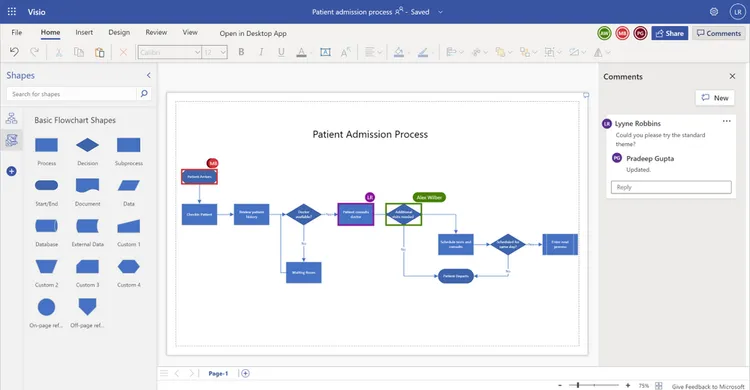
Microsoft Visio is an online diagramming and process mapping tool that allows users to create detailed and precise diagrams, flowcharts, organizational charts, and other visual representations of information. Originally developed by Shapeware Corporation in 1992, Visio was acquired by Microsoft in 2000 and integrated into the Microsoft Office suite.
Visio is a good Miro substitute for users who need precise, high-quality diagrams that adhere to specific standards and conventions. It's particularly beneficial for professionals in fields like engineering, architecture, and IT, where detailed technical diagrams are essential.
Visio's integration with other Microsoft products, such as Excel and SharePoint, also makes it a good option for users deeply embedded in the Microsoft ecosystem.
Looking for more tools similar to Visio? Check out this list of Visio alternatives.
What users say about Microsoft Visio:
"Best process mapping tool out there! I've used Visio to create complex database diagrams and I use it regularly to create process flow diagrams. I find it very easy to use and very useful for communicating ideas."
4. FigJam
- Pricing: Free, advanced features starting from $3/user/month
- Rating on Capterra: 4.8/5
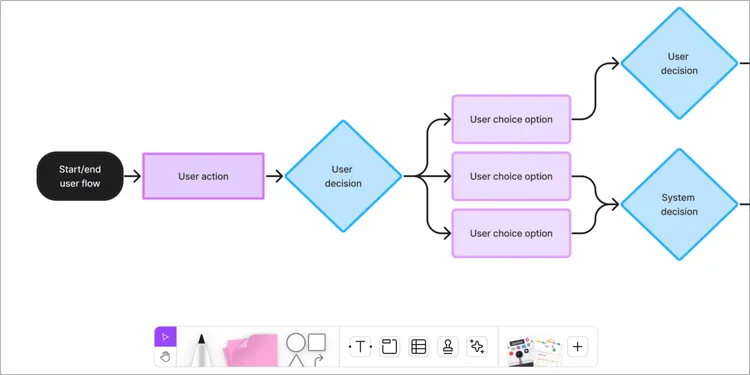
FigJam is a collaborative whiteboard tool from the Figma team that also works well for basic flowcharts. It gives you a large, flexible canvas where you can place shapes, connect steps, and sketch out simple workflows together with others.
Getting started is easy, especially if you already use Figma. The interface feels familiar, and the template library helps speed things up for common diagram types. Real-time editing, comments, and cursors make it a good fit for workshops, planning sessions, or early process discussions.
FigJam is less focused on formal flowcharting than dedicated diagram tools. It handles straightforward workflows well, but larger or more detailed diagrams can become harder to keep organized. Layout control and shape options are fairly basic, which may be limiting for technical or highly structured flows.
FigJam would fit into your workflow if your priority is collaboration and quick visual thinking. If you need strict structure or precise diagramming, other tools may be a better match.
What users say about FigJam:
"FigJam has been helpful to me when sketching out rough wireframes, mapping out ideas and concepts, as well as creating flowcharts, diagrams, and site maps. It also has a steep learning curve for beginners but offers a great support base thanks to the Figma community"
5. Gliffy
- Pricing: Free, advanced features starting from $6/user/month
- Rating on Capterra: 4.3/5
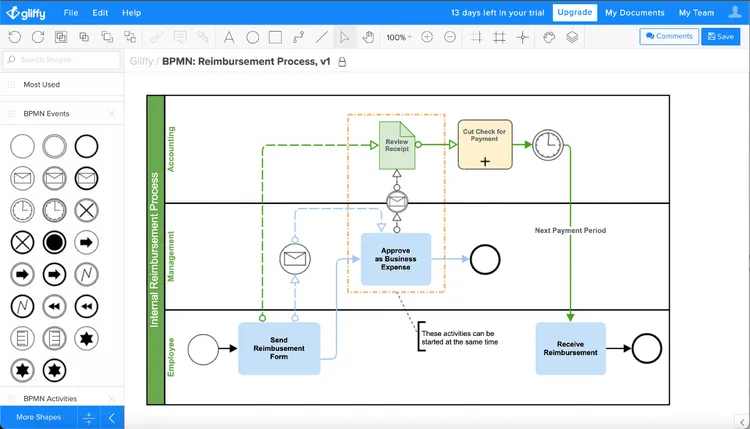
Gliffy is a browser-based diagramming tool focused on making flowcharts and simple diagrams easy to create and share. The editor uses a drag-and-drop canvas with familiar shapes and connectors, so most people can start working without much setup or learning time.
It supports standard flowchart diagrams, org charts, network diagrams, and a few other common formats. The feature set stays fairly straightforward, which works well for teams that want to document processes without dealing with complex controls or heavy configuration. Real-time collaboration is available, but it stays limited to basic editing and comments.
Gliffy is often used alongside Atlassian tools, since it integrates directly with Confluence and Jira. That makes it convenient for teams that already manage documentation or tickets there and want diagrams to live inside those workflows. For more advanced diagramming or large, detailed flows, the tool can feel restrictive, but for everyday process diagrams, it does the job without getting in the way.
What users say about Gliffy:
"The accessible flowchart application designed with ease of use in mind. It's very easy to use. If you can use a word processor, you can use Gliffy. Plus, there is a free version so that if you don't find yourself frequently making flowcharts but occasionally have something that really just needs one to help visualize it, you don't have to be a trained user with expensive software to be able to make a simple flowchart. There are many different styling options, and it has all the basic flowchart options that you need to make a variety of different types."
6. Draw.io (Diagrams.net)
- Pricing: Free
- Rating on Capterra: 4.6/5
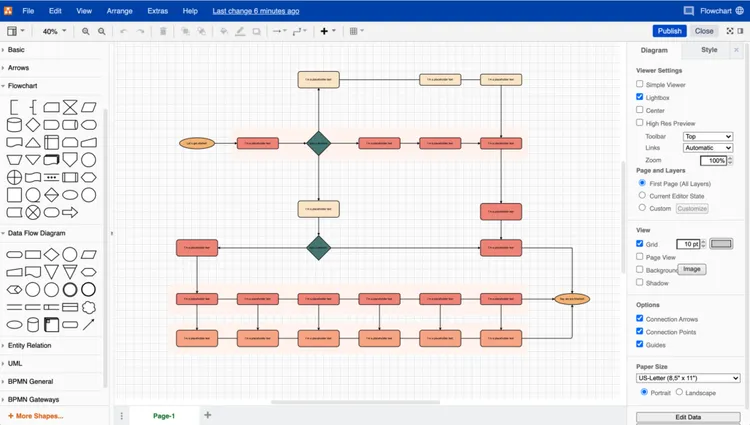
Diagrams.net, formerly known as Draw.io, is one of the best free flowchart software tools. It's an attractive option for individuals and teams on a budget. It also offers a wide range of diagram types, from basic flowcharts to complex network diagrams, mind maps, and even electrical circuits.
One of the key strengths of Diagrams.net is its flexibility in storage options. Users can save their diagrams directly to cloud services like Google Drive, Dropbox, OneDrive, or even on local storage.
While Diagrams.net is feature-rich and highly functional, it does come with a steeper learning curve compared to some other tools. The interface is less intuitive, which might require some time to get used to, especially for beginners.
What users say about Draw.io:
"If you're looking for a simple, straightforward tool for drawing flowcharts and other basic kinds of diagrams, then you have found the perfect option. Give it a try!"
7. Excalidraw
- Pricing: Free, advanced features starting from $6/user/month
- Rating on Capterra: 5/5
Excalidraw is a browser-based diagramming tool that focuses on quick, informal visuals. It lets you create flowcharts, sketches, and simple diagrams using a hand-drawn style that feels closer to a whiteboard than a traditional diagram editor.
The interface is minimal and easy to understand. You can start drawing immediately without setting up an account, which makes it useful for quick ideas or early-stage workflows. Shapes snap together in a simple way, and you can share diagrams through links or export them for documentation.
Excalidraw works best for lightweight flowcharts. It does not offer a large shape library, advanced layout controls, or formal diagram standards. Collaboration exists, but it stays fairly basic compared to tools built specifically for team workflows.
What users say about Excalidraw:
"It has been very useful for my live online presentations because I can easily present all my ideas through diagrams or drawings that are understandable to others. It has facilitated my expression with my invited colleagues. In addition, it is a very easy platform to use."
8. Miro
- Pricing: Free, advanced features starting from $8/user/month
- Rating on Capterra: 4.7/5
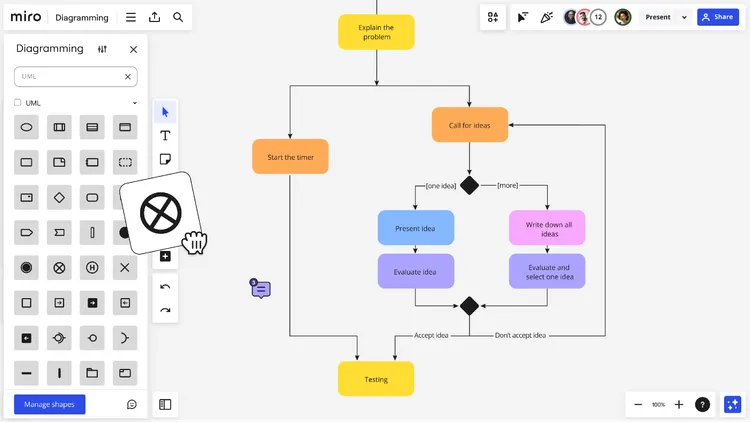
Miro is an online whiteboard that many teams use for flowcharts alongside brainstorming, planning, and workshops. It gives you an infinite canvas where you can build workflows with shapes and connectors, then expand them as the process grows.
Collaboration is where Miro focuses most. Multiple people can edit the same board at once, leave comments, and guide discussions directly on the canvas. The template library covers common flowchart and process patterns, which helps teams get started quickly without setting everything up from scratch. Integrations with tools like Jira, Confluence, and Slack make it easier to plug Miro into an existing workflow.
Miro is less suited for highly structured or precision-heavy diagrams. As boards get larger, keeping layouts clean can take some effort, and the interface can feel busy if you only need basic flowcharting. It works best for teams that value shared visual thinking over strict diagram rules or detailed formatting control.
Looking for more tools similar to Miro? Check out this list of Miro alternatives.
What users say about Miro:
"Several other options, such as Lucidchart and Microsoft Whiteboard, were considered before we settled on Miro. Miro, on the other hand, won out thanks to its boundless canvas, customizable templates, and real-time collaborative capabilities. In general, I have had nothing but good things to say about Miro. It has greatly enhanced our team's ability to work together, encouraging more innovative thinking and better communication."
9. Creately
- Pricing: Free, advanced features starting from $5/user/month
- Rating on Capterra: 4.4/5
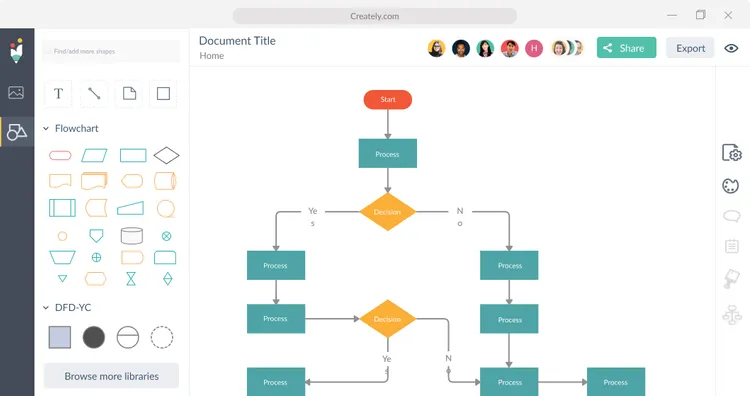
Creately is another solid option when it comes to flowchart software. It offers a user-friendly interface that makes it easy to jump right in and start diagramming.
Creately supports a wide range of diagram types in addition to flowcharts, including organizational charts, mind maps, and network diagrams. On the downside, while Creately's basic plan is quite affordable, some advanced features are locked behind higher-tier subscriptions. For instance, more extensive template libraries, advanced export options, and integrations with other productivity tools require a premium plan.
What users say about Creately:
"Easy to use for very simple diagrams and charts. The free version is nice if you don't mind your flowcharts being public. However, I wouldn't recommend it for any flowcharts that are more complex, or likely to be modified after the initial design."
10. EdrawMax
- Pricing: Starting from $99/year
- Rating on Capterra: 4.6/5
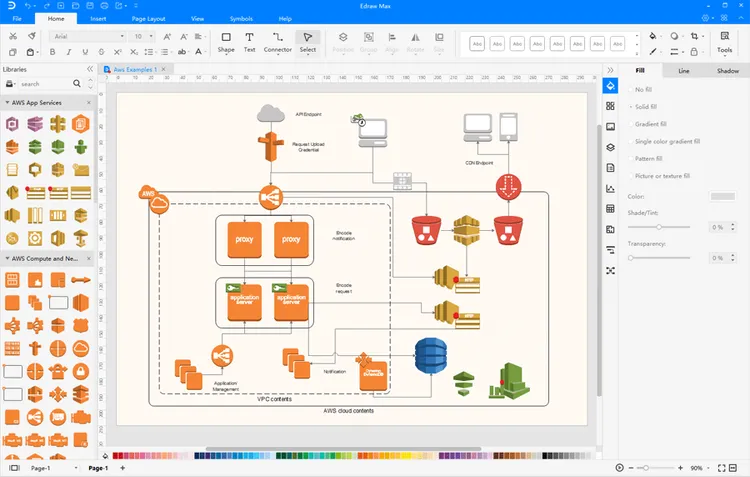
EdrawMax is a diagramming tool designed for creating a wide range of visual diagrams, including flowcharts, org charts, network diagrams, and technical schematics.
The tool offers a large collection of templates and symbols, which helps when you need to create detailed diagrams quickly. It supports many export formats and works well for users who need diagrams that follow specific standards or conventions. Once you get familiar with the interface, it can handle fairly complex flows without much trouble.
At the same time, the feature set can feel heavy if you only need simple flowcharts. The interface takes some time to get used to, and the number of options may slow things down for quick edits or brainstorming. EdrawMax makes the most sense when you regularly create detailed or technical diagrams and want everything in one tool.
What users say about EdrawMax:
"EdrawMax is great for creating flowcharts, network diagrams, drawings, organizational charts, kanban diagrams, digital presentations, design models, database diagrams, web design diagrams, electrical engineering diagrams, technical diagrams, Gantt charts, and many more. That is why when we start using it we no longer want to work with another tool."
11. SmartDraw
- Pricing: Starting from $8.25/user/month
- Rating on Capterra: 4.1/5
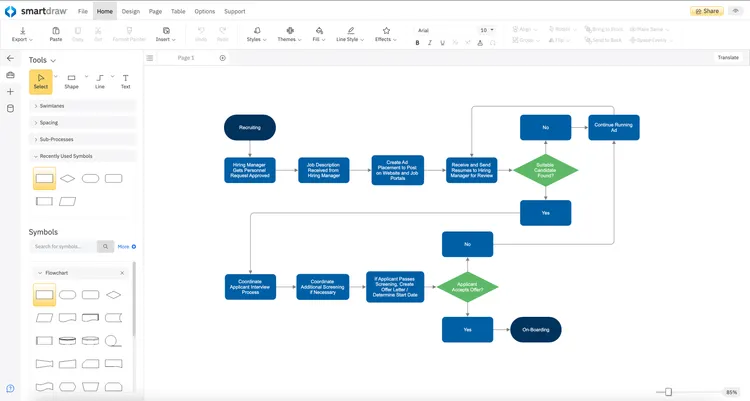
SmartDraw is a versatile flowchart and diagramming tool that combines ease of use with powerful features. It supports a wide range of diagrams, including flowcharts, org charts, mind maps, floor plans, and network diagrams.
One of SmartDraw's notable features is its intelligent formatting. As you create and modify your flowchart, the tool automatically adjusts the layout to keep everything neat and organized. This saves you time and ensures your flowcharts always look professional.
What users say about SmartDraw:
"This was the first software I found for flowcharts where there were enough features to work quickly and I didn't run into any problems where I couldn't achieve something. Objects + lines stay connected and the tools actually help you make the chart quickly and easily in an organized manner. Many other programs expect you to do a lot manually like placing the line which wastes time and is frustrating."
12. OmniGraffle
- Pricing: Starting from $12.49/month (or $149.99 one-off payment)
- Rating on Capterra: 4.6/5
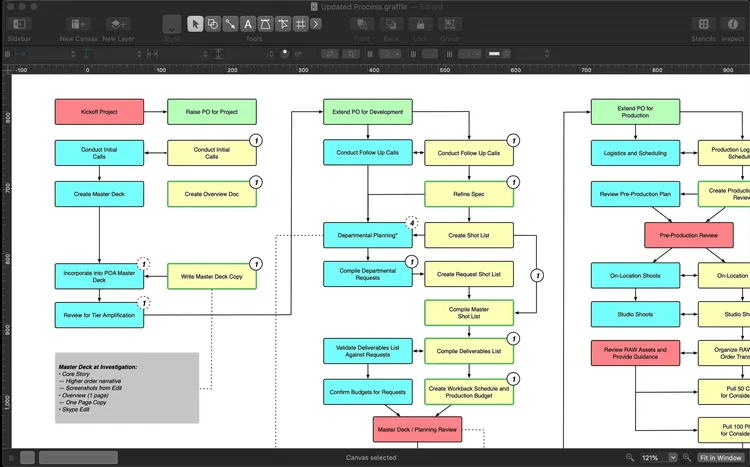
OmniGraffle is a diagramming and flowchart tool built specifically for macOS and iOS. It is designed for creating precise, structured diagrams, including flowcharts, org charts, wireframes, and technical layouts. The app runs natively on Mac, which makes it feel responsive and well integrated with the operating system.
The editor focuses on accuracy and control. You get strong alignment tools, snap-to-grid behavior, layers, and detailed styling options. This makes OmniGraffle a good choice for complex diagrams where spacing, consistency, and structure matter.
The trade-off is that OmniGraffle is less collaborative than most browser-based tools. Real-time multi-user editing is not its strength, and sharing usually happens through exports rather than live collaboration. There is also a learning curve if you are used to simpler drag-and-drop tools.
What users say about OmniGraffle:
"It's a solid tool, and if you need a native flowchart/layout app. Feels somewhere in between a vector-based design tool and a flowchart/layout tool. It does both good, but neither great. Also, it's not as collaborative as other tools out there. The rage right now is real-time collaboration."
13. Whimsical
- Pricing: Free, advanced features starting from $10/user/month
- Rating on Capterra: 4.7/5
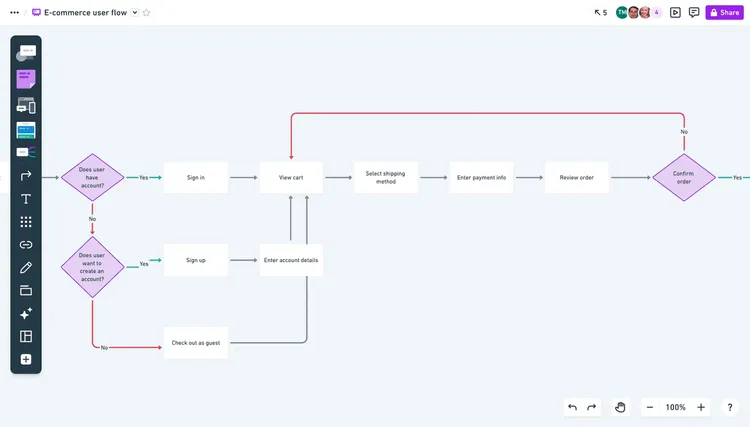
Whimsical is a visual workspace that focuses on flowcharts, mind maps, wireframes, and simple diagrams. The interface stays clean and minimal, which makes it easy to sketch out a process without spending time on setup. Creating and connecting steps feels quick, and the diagrams stay readable even as they grow.
Flowcharts in Whimsical work well for product planning, user flows, and lightweight process mapping. The tool keeps layout and spacing under control automatically, so diagrams tend to look tidy without much manual adjustment. Collaboration is built in, with live editing, comments, and sharing links that work well for small teams.
Whimsical does not aim to cover advanced or highly technical diagramming. The shape library is intentionally limited, and customization options stay fairly basic. It fits best when clarity and speed matter more than precision or strict standards, especially for teams that want a focused tool rather than a full whiteboard platform.
What users say about Whimsical:
"We use Whimsical collaboratively to create flowcharts for teams at all levels at our organization. I think Whimsical has the easiest UI of any flowcharting software. It's intuitive to get going on it and you don't have to think twice about making lines flow. I like it more than Lucidchart and that's saying a lot."
14. Mermaid Chart
- Pricing: Free, advanced features starting from $8/user/month
- Rating on Capterra: 4.7/5
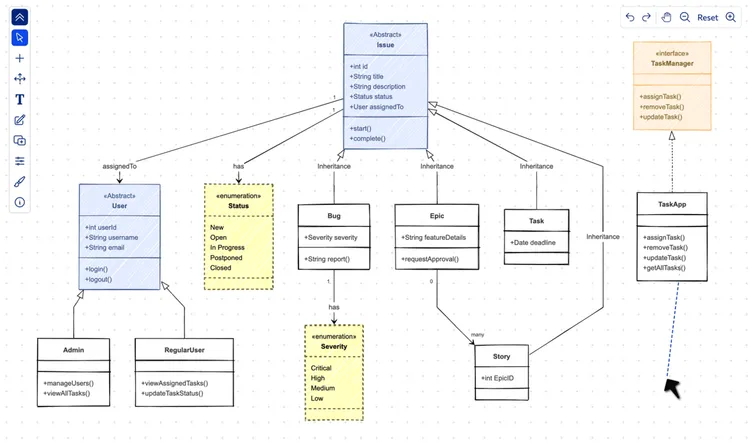
Mermaid Chart is a diagramming tool built around Mermaid syntax, which means you create flowcharts by writing text instead of dragging shapes onto a canvas. You describe the steps of a process in a simple markup language, and the tool renders it as a diagram. This approach appeals mainly to developers, technical writers, and teams who already work with Markdown or version-controlled documentation.
The main advantage of Mermaid Chart is how well it fits into technical workflows. Diagrams live as text, so they are easy to edit, review, and store alongside code or documentation. Mermaid diagrams also work across many platforms, including GitHub, Notion, and static site generators.
That same text-first approach can be a drawback for non-technical users. There is a learning curve if you are not comfortable writing syntax, and visual tweaking is more limited than in traditional flowchart editors.
What users say about Mermaid Chart:
"I have used Mermaid Chart for years, primarily for sequence diagrams and flowcharts. It allows me to create diagrams using clear text easily. The tool is fantastic in helping me collaborate with end users to translate their ideas into visual diagrams and then quickly iterate on them."
15. Mural
- Pricing: Free, advanced features starting from $9.99/user/month
- Rating on Capterra: 4.5/5
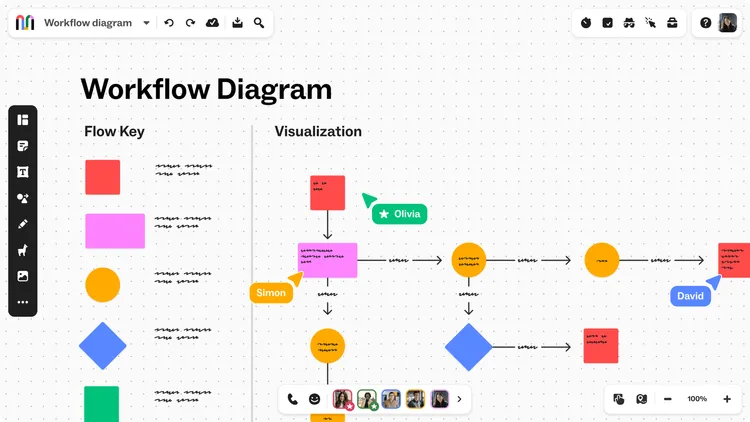
Mural is an online whiteboard tool built around visual collaboration. It lets teams create flowcharts, diagrams, and process maps on a large canvas using basic shapes, connectors, and templates. The focus is on shared work rather than precise diagramming.
The interface is easy to understand and works well in group settings. Multiple people can edit the same board at once, leave comments, and guide discussions using built-in facilitation features. This makes Mural a common choice for workshops, retrospectives, and planning sessions where the flowchart is part of a broader conversation.
Mural is not designed as a dedicated flowchart tool. It covers common use cases, but it lacks advanced layout controls and flowchart-specific features found in more specialized software. It works best when the goal is collaboration and exploration, rather than producing highly detailed or technical diagrams.
What users say about Mural:
"Mural is ideal for creating mind maps and very easy-to-use flowcharts. The number of pre-designed templates it has is endless."
Flowchart software FAQs
What is the best flowchart software for Mac?
Many Mac users prefer OmniGraffle. It is built specifically for macOS and feels like a native app. It gives you precise layout control, strong alignment tools, and enough depth for complex diagrams. It takes a bit of time to learn, but it works well if accuracy matters.
What is the best flowchart software for Windows?
Microsoft Visio is still the default choice for many Windows users. It comes with a large set of templates and works well with other Microsoft tools like Excel and PowerPoint. It handles everything from quick process diagrams to more complex technical charts.
What is the best open-source flowchart software?
Draw.io, now called Diagrams.net, is the most common answer here. It is free, open source, and runs directly in the browser. You get a wide range of shapes and export options without having to install anything.
Dia is another option, especially for users who prefer a desktop app. It supports many diagram types and has been around for years, though the interface feels more dated compared to web-based tools.
What is the best free flowchart software?
Draw.io (Diagrams.net) is hard to beat if you want a free tool with no major limits. You get full diagramming features, multiple export formats, and no forced upgrades.
Google Drawings also works for very simple flowcharts. It is not a dedicated diagramming tool, but if you already use Google Workspace and only need basic diagrams, it is often good enough.
Find the best flowchart software tool for you
There is no single flowchart tool that works best for everyone. Some teams want something quick for sketching ideas. Others need precise diagrams with strict structure. What matters is how the tool fits into the way you already work.
The tools in this list cover the most common use cases, from simple process maps to complex technical diagrams. Use them as a starting point, try a few with real work, and see which one feels easiest to use day to day. The right choice is usually the one you stop thinking about once you start working.